Updating user form access
When adding a new user or when a new form is created it's important to update what forms users can access. If a user does not have access to view any forms, their worklists will remain empty.
If a new form is added and the user access is not updated, only dashboard administrators will be able to see the form submissions.

This is for users only, dashboard administrators will see all form requests as standard.
Updating form access
To update the forms each user can see, a dashboard administrator at the practice will need to navigate to menu, then user access on the dashboard.
Once at user access, find the user you need to update. You can scroll down the user list, or use the search users bar at the top.
Once you have found the user you need to update, you will just need to click on 'Triage forms' dropdown shown below:
Once you click on the drop down a pop up will appear where you can either enable / disable certain forms are enable / disable all forms:
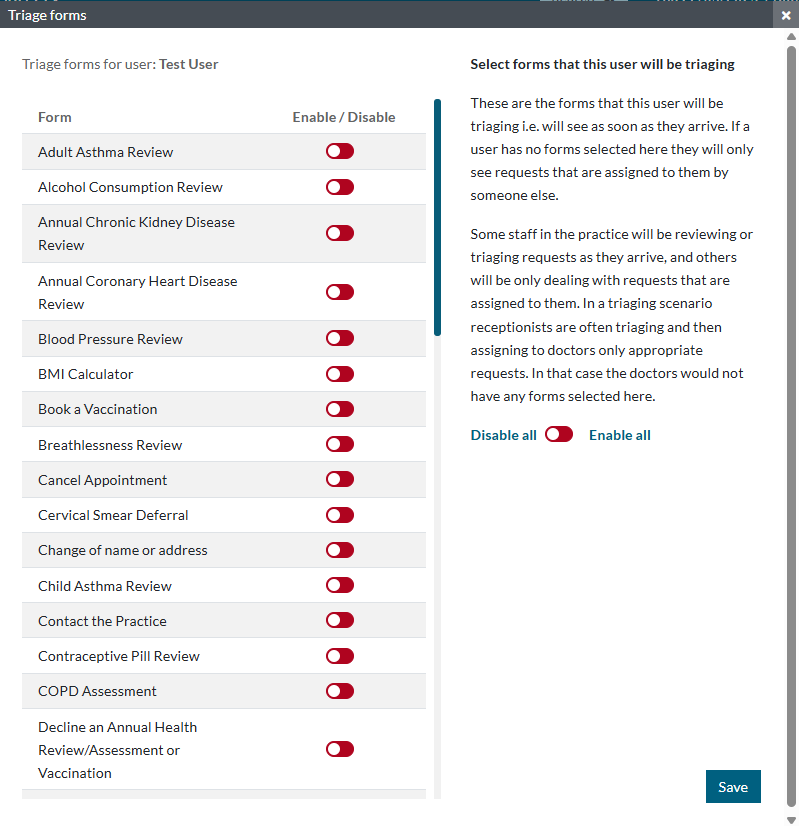 The triage forms pop up.
Once you have made your selection, you can then click save and the forms selected will then show in that users worklist.
Once a new form has been created
If you have requested a new form to be created, then our support team will advise you to follow these steps, as new forms will not be automatically enabled on the user access.
If you have any issues at all, our friendly support team is always on hand to help.